Follow
 Get more relevant, more accurate answers from Prime Architect by giving your AI agent the context it needs — no more copy-pasting excerpts or describing an incident from memory. In Prime Architect, every chat is a space to work through detection engineering and threat research tasks with AI, whether you’re writing a custom prompt or running one of the built-in Agentic AI tools. Now you can bring your own reference materials into that conversation directly: upload playbooks, incident reports, environment documentation, screenshots, and other reference materials into your chat, and let the AI work from the real source.
Why It Matters
Better context means better output. When an AI tool works from your actual playbook, incident report, or environment documentation, its analysis is grounded in your real data rather than a secondhand summary. You can write your message and attach files together, and the AI agent treats the attached files as context for that message — whether you’re running a custom prompt or one of the purpose-built AI tools in Prime Architect. Instead of retyping the key details of an incident or manually condensing a lengthy report before you can even start your analysis, you simply hand the AI the source document and move straight to the insight.
Flexibility for every workflow. Not every analyst wants to work the same way. That’s why there are three different ways to attach a file — a manual upload button, drag and drop, and clipboard paste — so you can choose whichever fits your current task and habits. Dragging a report straight from your desktop, pasting a screenshot you just captured, or browsing for a file through the upload menu all lead to the same result: your AI agent working with richer, more accurate context.
Built for how security teams actually work. Detection engineers and threat researchers rarely start from a blank page — they start from an existing playbook, a prior incident write-up, environment documentation, or a screenshot of a suspicious event. This feature meets that reality head-on, letting you carry that material directly into your conversation instead of translating it into a prompt by hand.
How to Add a File
There are three simple ways to get a file into your chat message in Prime Architect.
Option 1: Upload manually
- Click the + icon in the chat input area and select Add Files and Images.
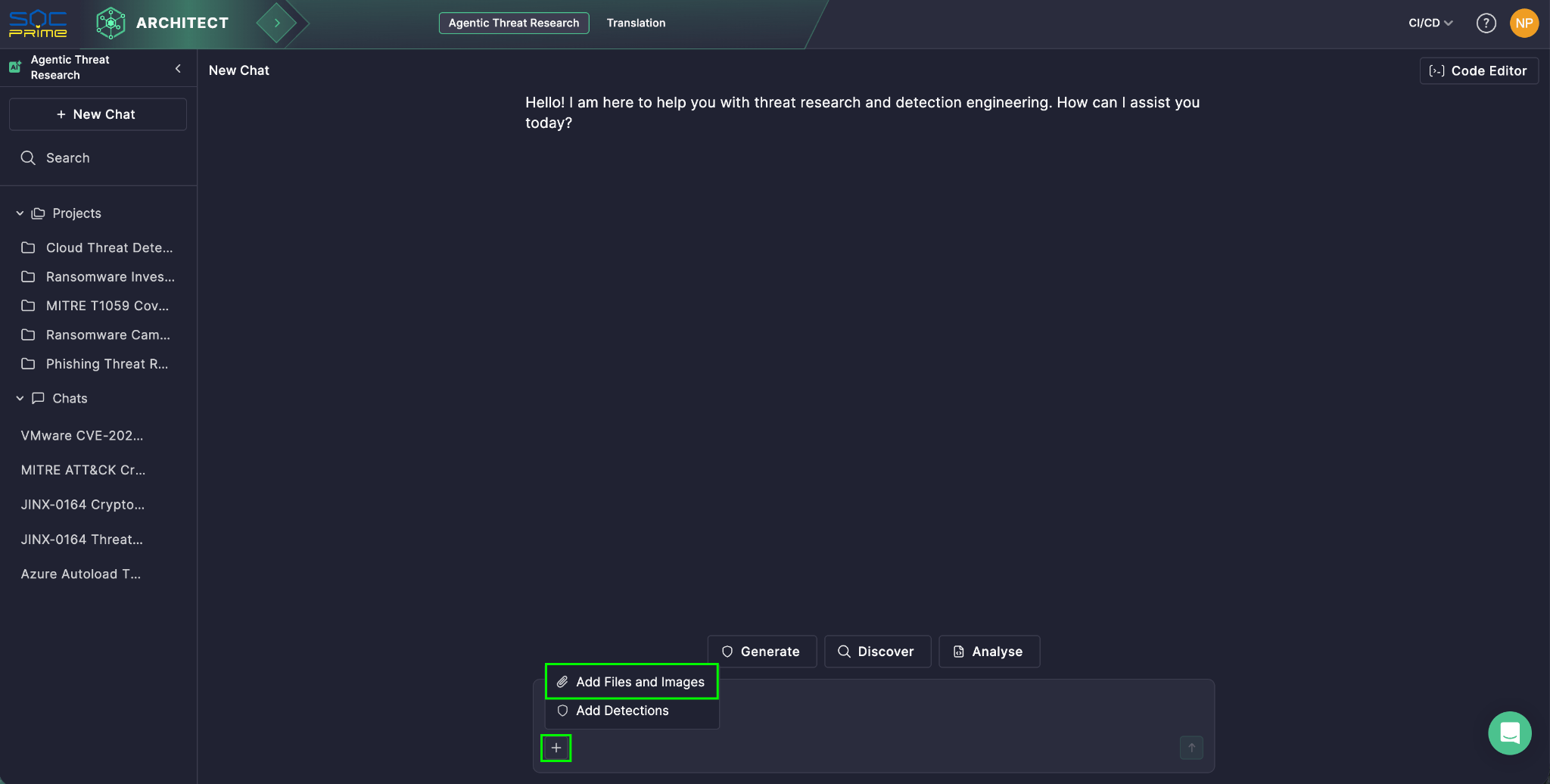
- Select a file from your device.
- The file appears in the input area and begins uploading.
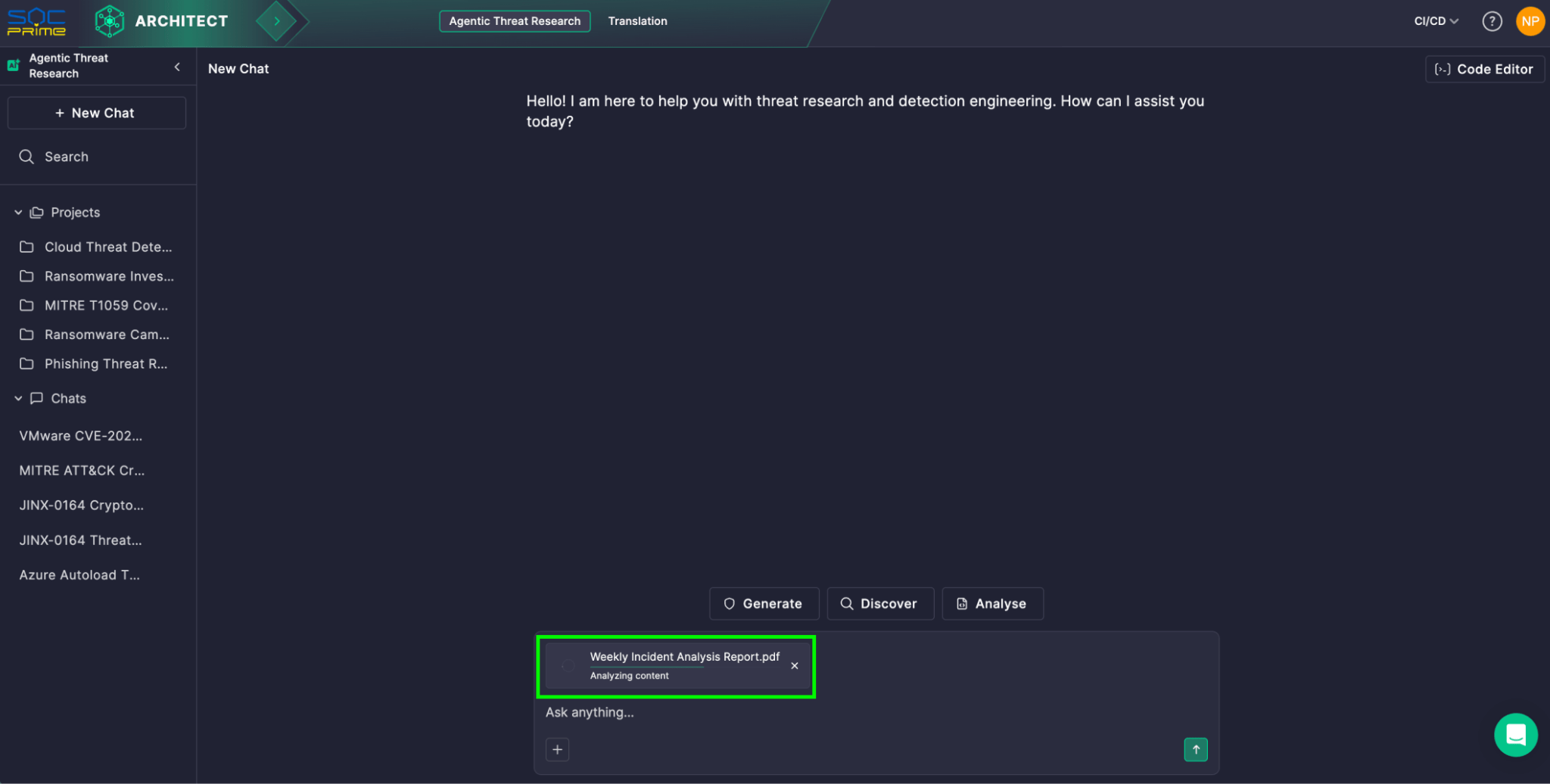
Option 2: Drag and drop
- Locate the file on your computer — for example, in Finder or File Explorer.
- Drag the file into the chat panel in Prime Architect. You can drop it anywhere in the chat window, including the message history area or the input field.
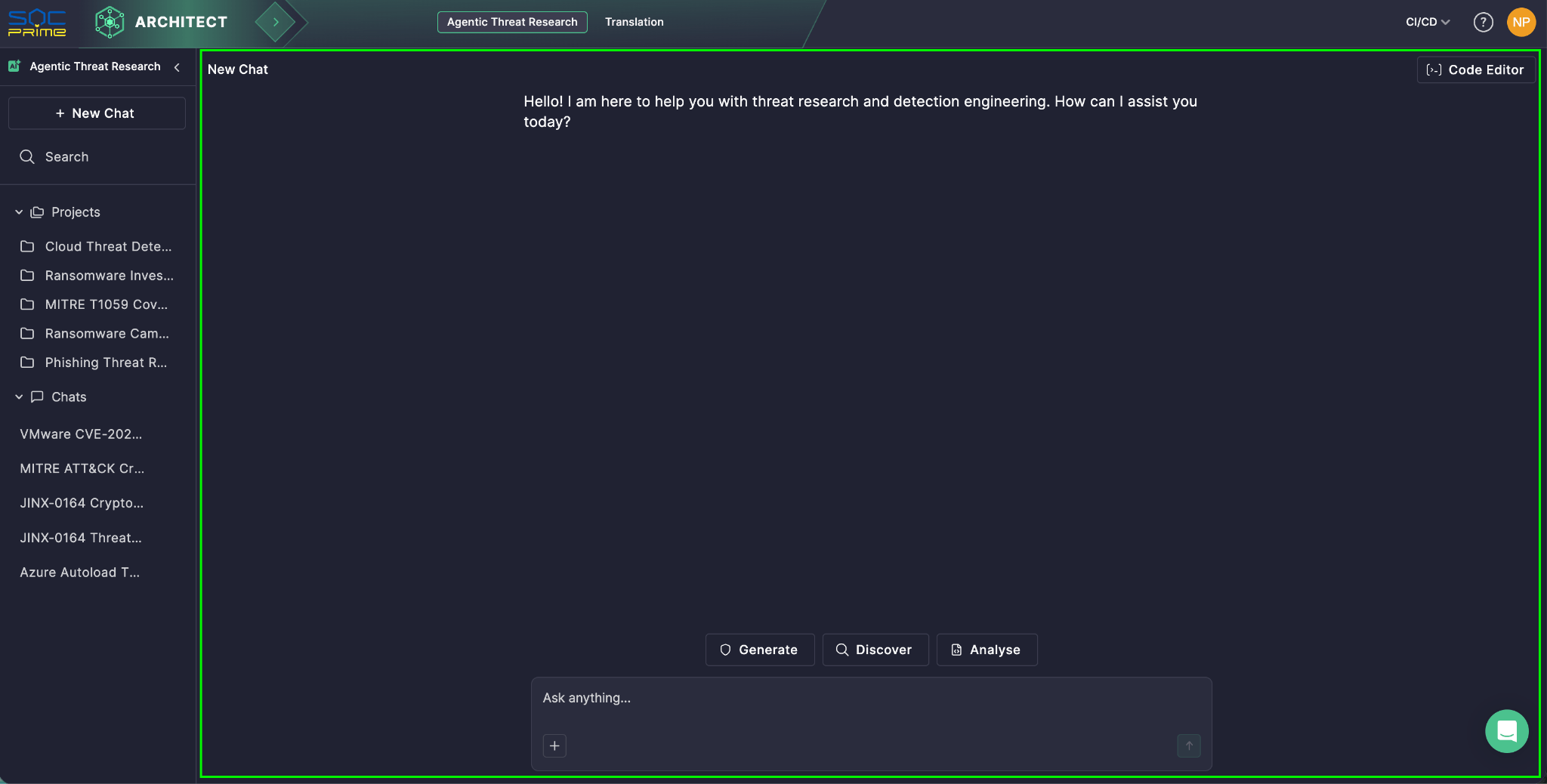
- The file appears in the input area and begins uploading.
Option 3: Paste from clipboard
- Copy an image, screenshot, or file — take a screenshot, copy an image from another app, or select a file in your OS file explorer and press Cmd+C / Ctrl+C.
- Click into the chat input field to make it active.
- Paste using Cmd+V / Ctrl+V.
- The file appears in the input area and begins uploading.
A few things to know: You can attach up to 3 files per message, with a maximum size of 5 MB per file. Supported formats include PDF, TXT, CSV, JSON, PNG, and JPG/JPEG — covering the most common document, data, and image formats used in security workflows. Depending on the size of your files, it may take a moment to process them before they’re ready to be used as context, especially for documents with many images or visual elements.
Make It Part of Your Workflow
Whether it’s a playbook pulled from your files, a screenshot of a suspicious alert, or an incident report you’ve had open all day, getting it into Prime Architect takes just a click, a drag, or a paste. Stop summarizing your evidence — start uploading it, and let your AI agent do the deeper work.